
How to Undervolt Your GPU With MSI Afterburner — The 2026 Guide

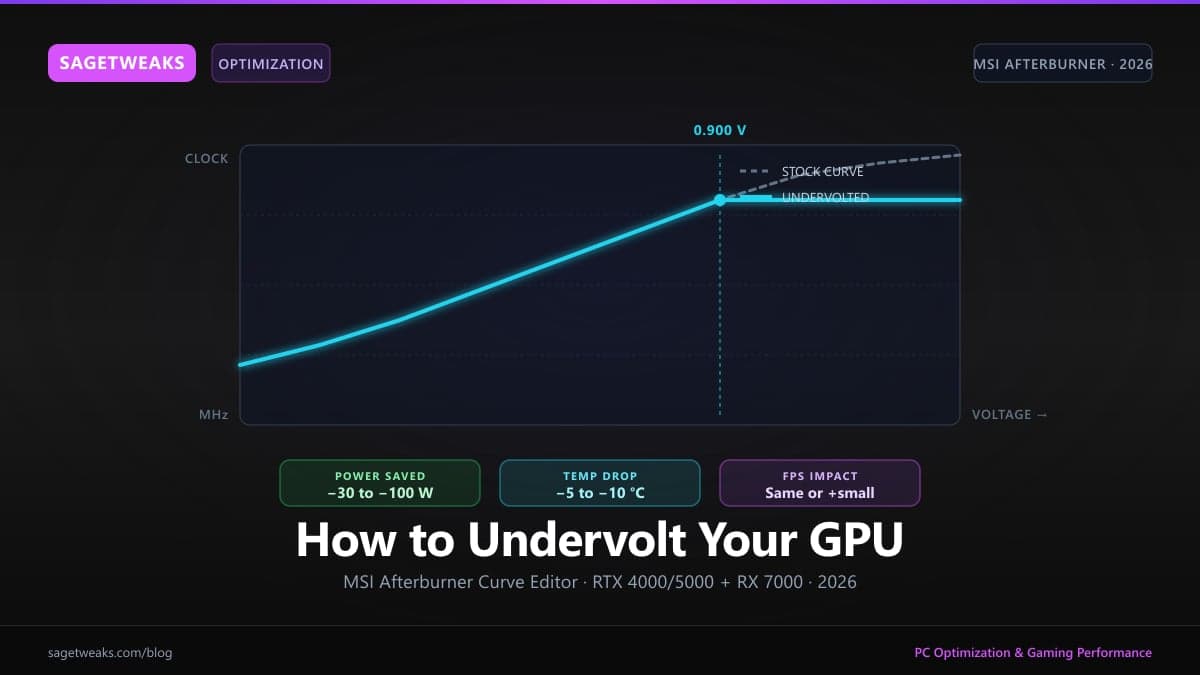
A correct GPU undervolt drops 30–100W of power draw, 5–10°C of operating temperature, and the noise that comes with both — usually with no FPS loss, sometimes with a small FPS gain from reduced thermal throttling on long sessions. It takes about an hour the first time and stays applied for the life of the card.
This is the full process: tools, baseline, curve editor steps, per-GPU starting points (RTX 4000/5000, RX 7000), stability testing, and the one thing every undervolt guide skips that determines whether the gains actually show up in your games.
Tested on MSI Afterburner 4.6.6 Beta · NVIDIA driver 580.xx · AMD Adrenalin 25.5.x · May 2026.
What Undervolting Actually Does (And What It Doesn't)
Modern GPUs ship with a generous voltage curve — Nvidia and AMD calibrate to the worst silicon they'll sell. Your specific card almost certainly runs stable at 50–150 mV less than stock at the same boost clock. Pull the voltage down and three things happen:
- Power draw drops proportional to voltage² × frequency. A 100 mV reduction at full load typically saves 30–80W.
- Heat output drops — same equation — leading to lower temps, lower fan speed, less noise.
- Sustained boost clocks rise because the card stops thermal-throttling on long sessions. This is where the small FPS gains come from.
What undervolting doesn't do: it doesn't increase peak FPS in short benchmark runs (you're not raising clocks above factory). It doesn't reduce GPU lifespan — actually extends it via lower thermal stress. It doesn't void warranties — software-level adjustments aren't covered by NVIDIA or AMD warranty terms.
Before You Start: The Tools You Need
Five tools, all free:
- MSI Afterburner (4.6.6 Beta or later) — the actual tuning tool. Bundled with RivaTuner Statistics Server (RTSS) for the on-screen display.
- FurMark 2 — synthetic stress test. Worst-case load.
- OCCT — alternative stress test, good for sanity-checking FurMark results.
- HWiNFO64 — monitoring during testing. Tracks per-rail voltage, clock, temp, fan RPM at sub-second intervals.
- A real game — Cyberpunk 2077 with path tracing, Microsoft Flight Simulator 2024, or whatever stresses your specific card hardest. Synthetic stability ≠ real-game stability.
Download Afterburner only from msi.com or guru3d.com. Phishing mirrors with modified installers exist. RTSS installs automatically with Afterburner — accept the dialog.
Step 1 — Establish Your Baseline
Before you change anything, you need numbers to compare against.
- Open HWiNFO64 → Sensors-only mode
- Open FurMark 2 → 1080p, 8× MSAA → Run benchmark for 10 minutes
- While running, in HWiNFO64 watch your GPU rows:
- GPU Core Clock (avg + max)
- GPU Voltage (avg + max — usually 1.050V on Ada/Blackwell, up to 1.10V on overclock)
- GPU Temperature + Hot Spot Temp (max)
- GPU Power Draw (avg + max)
- GPU Fan Speed (avg)
Write these down. They're your before-state. Anything below these numbers post-undervolt is a win.
If your card hits 84°C+ on stock during this run, you're already thermal-throttling — the undervolt will benefit you more than average. See fixing PC overheating during gaming for case airflow before doing anything in software.
Step 2 — Open the Voltage/Frequency Curve Editor
In MSI Afterburner, press Ctrl + F. The curve editor opens.
- X-axis = GPU voltage in millivolts (mV)
- Y-axis = GPU core clock in MHz
- Each square = one V/F point
The default curve rises steeply on the right — that's where your card pushes high voltage to chase the last 100 MHz of boost clock. That right side is what you're going to flatten.
Step 3 — Pick Your Target Voltage Point
This is the most important step. Pick a voltage where your card will run, and a clock you want it to hit at that voltage.
For most modern cards, the sweet spot is between 875 mV and 950 mV. Below that you start losing performance; above that you're not really undervolting.
Find the square at your target voltage on the curve. Click it once to select it. Ctrl + drag it upward to set your target clock.
Per-GPU starting points are in the table further down. If you're not sure, start at 0.900V at stock-or-near boost clock for any RTX 4000/5000 card, or 1050 mV for RX 7000.
Step 4 — Flatten the Curve to Lock the Target
After raising your target point, every square to the right of it (higher voltage) needs to be dragged down to match your target clock. This creates a flat shelf — the GPU will never request more voltage than your target.
Quick way: select the square one to the right of your target → hold Shift → click the rightmost square → all squares between are selected → drag the group down to the target clock height.
The result: a curve that rises normally up to your target voltage, then flattens. Click Apply (the checkmark). Your changes are now live.
If the card immediately black-screens or the driver crashes, your target clock is too high for the chosen voltage. Reduce target clock by 25 MHz, retry.
Step 5 — Stability Test (20-min FurMark + 30-min Real Game)
Synthetic stability is necessary but not sufficient. Real games hit different transient voltage patterns than FurMark — you need both.
Phase 1 — Synthetic (20 minutes):
- FurMark 2, 1080p 8× MSAA
- Watch HWiNFO64 for: driver crashes, voltage instability, clock drops more than 50 MHz below target
Phase 2 — Real game (30 minutes):
- Cyberpunk 2077 with path tracing on, or Microsoft Flight Simulator 2024 dense urban area, or Alan Wake 2 with full RT
- Same monitoring, plus watch for: artifacts, texture corruption, hitches that didn't exist on stock
If you make it through both with no crashes, no artifacts, and clocks holding within 25 MHz of target — your undervolt is stable. If anything fails, see "When Your Undervolt Crashes" below.
For a complete view of game stability beyond GPU undervolting (driver-level crashes, shader compilation issues, RAM-related stutters), see our guide on fixing stuttering in games on Windows 11.
Step 6 — Apply at Startup
A working undervolt that doesn't auto-apply is a working undervolt you'll forget about within a week.
In Afterburner:
- Save your tuned profile to slot 1 (click the disk icon → 1)
- Settings (gear icon) → General tab
- ☑ Apply overclocking at Windows startup
- ☑ Start with Windows
- ☑ Start minimized
Reboot and verify in HWiNFO64 that the curve is applied automatically. RTSS will also auto-load with Afterburner if you want the in-game OSD.
Per-GPU Starting Points
These are conservative starting points that work for the average chip. Your specific silicon may go further — iterate down 12.5 mV at a time after passing stability tests.
| GPU | Starting Voltage | Target Clock | Typical Power Saving | Typical Temp Drop | |---|---|---|---|---| | RTX 5090 | 0.900 V | 2800 MHz | ~100 W | -10 °C | | RTX 5080 | 0.900 V | 2800 MHz | ~60 W | -8 °C | | RTX 5070 Ti | 0.925 V | 2700 MHz | ~35 W | -7 °C | | RTX 5070 | 0.925 V | 2700 MHz | ~30 W | -7 °C | | RTX 5060 Ti | 0.950 V | 2800 MHz | ~20 W | -5 °C | | RTX 4090 | 0.900 V | 2700 MHz | ~80 W | -10 °C | | RTX 4080 / Super | 0.900 V | 2700 MHz | ~50 W | -8 °C | | RTX 4070 Ti / Super | 0.925 V | 2700 MHz | ~30 W | -7 °C | | RTX 4070 (Super) | 0.925 V | 2700 MHz | ~25 W | -6 °C | | RTX 4060 Ti | 0.950 V | 2550 MHz | ~15 W | -5 °C | | RTX 4060 | 0.950 V | 2460 MHz | ~12 W | -4 °C | | RX 7900 XTX | 1050 mV (via Adrenalin) | 2500 MHz | ~50 W | -8 °C | | RX 7800 XT | 1050 mV (via Adrenalin) | 2400 MHz | ~30 W | -6 °C | | RX 7700 XT | 1075 mV (via Adrenalin) | 2400 MHz | ~25 W | -5 °C | | RX 7600 | 1075 mV (via Adrenalin) | 2250 MHz | ~15 W | -4 °C |
RX 7000 — The AMD Adrenalin Workflow
Afterburner does not expose voltage control on RDNA 3 cards (RX 7000 series). The curve editor lives in AMD Adrenalin instead. The principle is identical to the Afterburner steps above — cap voltage, lock target clocks — but the UI is different. The five-step Adrenalin workflow:
- Right-click desktop → AMD Software: Adrenalin Edition → Performance → Tuning
- Click Custom (not Default / Automatic) → accept the warning dialog
- GPU Tuning panel → enable Manual voltage and frequency control
- Set Voltage (mV) to your target from the table above (e.g. 1050 mV for 7900 XTX, 1075 mV for 7700 XT). Set Min/Max Frequency to a target a touch below stock max (e.g. 2500 MHz for 7900 XTX)
- Click Apply Changes → use Save Profile to persist; toggle Run on startup under Adrenalin Settings
Stress test exactly the same way as the Afterburner section: 20 minutes FurMark + 30 minutes real game. Adrenalin's "Stress Test" button is fine for the synthetic phase. Failure modes and iteration loop ("driver crash", "artifacts", etc.) are identical — see "When Your Undervolt Crashes" below.
When Your Undervolt Crashes
The iteration loop, by failure mode:
- Driver crash / black screen during stress test — voltage too low for target clock. Either reduce clock by 25 MHz or raise voltage by 12.5 mV.
- Crash in one specific game but not others — that game has higher transient voltage demand (often path-traced or RT-heavy). Either tune for the worst case (lower target clock 25 MHz) or accept and only run the demanding game on a backup profile.
- Visual artifacts (texture flickering, mesh corruption) — clock too high for voltage at memory or compute level. Reduce target clock by 50 MHz.
- Lower FPS than stock baseline — undervolt is stable but you went too low on voltage and the card can't hit boost. Raise voltage by 12.5 mV.
- Stable for 30 minutes, crashes after 2 hours — long-tail thermal or capacitor effect. Add 12.5 mV margin or accept session-length restart.
Three iteration rounds usually finds the limit. Don't aim for the absolute minimum on round one.
The Hidden FPS Killer Most Undervolt Guides Ignore
You finished the undervolt. Stable, cooler, quieter. You launch your benchmark and the average FPS is up 4 — but your 1% lows are still bad. Microstutters are still there. What gives?
The undervolt fixed your GPU. It didn't touch what Windows is doing on the CPU side, and that's where most of your remaining frame-time variance lives.
Five Windows-level surfaces commonly cap a clean GPU undervolt's real-world gain:
- Default Windows timer resolution = 15.6 ms → microstutters in any game using sub-frame scheduling. Setting it to 0.5 ms removes a class of stutters that the GPU undervolt can't touch. See timer resolution and FPS for why this matters and how to set it.
- Game DVR / Game Bar background recording — constant CPU + GPU overhead, on by default in 24H2. Disable in Settings → Gaming → Captures.
- HVCI (24H2 default-on) — adds 5–15% gaming overhead. Toggleable via Settings → Privacy & security → Windows Security → Core isolation.
- Power plan = Balanced — CPU throttles between frames, causing irregular frame pacing. Set to Ultimate Performance or High Performance.
- Background AppX and telemetry — preloads, scheduled tasks, indexing. Constantly consume cycles your undervolted GPU is now waiting on.
For driver-level GPU settings (Resizable BAR, Power Management mode, low latency mode), see our GPU optimization guide for Nvidia and AMD. For the full Windows-side stack — power plans, services, background tasks, registry — see best Windows settings for gaming 2026.
This is the part of GPU tuning Afterburner doesn't do, and most guides don't write about.
FAQ
Will undervolting void my GPU warranty? No. NVIDIA and AMD warranty terms cover hardware defects, not software-level voltage adjustments via tools the manufacturers themselves bundle (NVIDIA App, AMD Adrenalin) or sanction (Afterburner).
Does undervolting reduce GPU lifespan? The opposite. Lower voltage and temperature reduce thermal cycling stress on solder joints and capacitors. A correctly undervolted GPU typically lasts longer than a stock one.
Why does my undervolt fail in some games but not others? Workload-dependent voltage demand. Path-traced rendering (Cyberpunk 2077, Alan Wake 2 with PT) pushes higher transient voltage spikes than rasterized games. Tune for your hardest title.
Can I undervolt and overclock at the same time? Yes — that's actually the goal of any serious tune. You're aiming for "more clock at less voltage than stock." That's what the curve flattening achieves: stock-level clocks on the left side of the curve, no voltage runaway on the right.
Should I just use Afterburner's OC Scanner instead? OC Scanner does conservative automatic overclocking, not undervolting. It's a fine starting point but the manual curve method consistently beats it by 5–10% — the auto-tune doesn't understand voltage reduction, only frequency increase.
What about laptop GPUs? Mobile RTX 4000/5000 cards undervolt the same way but with less headroom (they're already factory-tuned tighter for thermals). Expect 25–40 W power saving rather than 80–100 W. Process is identical.
You've optimized your GPU — now optimize Windows around it. A clean Afterburner undervolt earns you 30–100 W and 5–10°C; the Windows-side tweaks above earn you the consistent frame-times that make those gains visible in your games. SageTweaks automates the timer resolution, services, scheduled task, and registry surface so the FPS your undervolt unlocks isn't getting eaten by background Windows overhead. Two tools, two layers, one tuned PC.
Written and benchmarked by the SageTweaks editorial team. Guides are tested on real Windows gaming hardware and re-validated after major Windows and GPU driver updates.
More from SageTweaks →SageTweaks
Ready to review guided PC optimization?
Use SageTweaks to review FPS, input latency, and Windows overhead workflows. Guided optimization for Windows 10 & 11.
- Guided GPU, CPU & power plan workflows
- Dedicated and detected-game FPS profiles
- Registry cleaner & startup manager
- Monthly, Yearly & Lifetime plans
30-day money-back guarantee
Next steps
Free PC optimization checklist
The 47-tweak manual version — yours to keep.
Free per-game FPS cheat sheets
Printable settings for Valorant, CS2, Fortnite, Apex.
See every SageTweaks feature
System tweaks, game profiles, cleaner, registry, power plans.
How we keep your PC safe
VirusTotal report published, rollback support, clear network use.
Read user reviews
Read public feedback and product notes before you buy.
Compare plans
Monthly $5.99 · Yearly $49.99 · Lifetime $79.99.
Related Posts
DLSS 4.5 Explained: Transformer Model, Multi-Frame Gen & Best Settings
DLSS 4.5 is NVIDIA's latest upscaling tech with a 2nd-gen Transformer model, 6x Multi-Frame Generation, and unified Ray Reconstruction. Here's how to set it up properly.
RTX 50-Series Best Settings & Optimization Guide (2026)
Get the most from your RTX 5090, 5080, or 5070. NVIDIA App settings, undervolting, DLSS 4 presets, and shader cache tuning that unlock real FPS.
NVIDIA Control Panel Missing? Where Settings Moved
NVIDIA retired the Control Panel in driver 610.47. Here's where every 3D, display, and G-Sync setting moved in the NVIDIA App, plus the settings now gone.